


 AGCO
AGCO ALLISON
 BENDIX
 BOBCAT
 CAT
CAT CLAAS
CLAAS CNH
CNH DAF
DAF DETROIT
 EATON
EATON FREIGHTLINER
 HINO
HINO HITACHI
 ISUZU
ISUZU JCB
JCB JOHN DEERE
 JPROZZ
 MAGIC TUNER
 MAN
MAN Navistar
 NEXIQ
NEXIQ PACCAR
 PERKINS
 PF DIAGNOSE
 PSI POWERLINK
 RENAULT
 SCANIA
 THERMO KING
 UD NISSAN
 VOLVO
VOLVO WABCO
WABCO ZF TESTMAN
 BELL
BELL BENDIX
 BOBCAT
 CARRIE
 DAF
DAF DETROIT
 DEUTZ
DEUTZ EATON
EATON FUSO
FUSO MACK
MACK
 Cumminz
 ISB4.5 CM2150
 All Engines (2017 Emissions)
 PACCAR
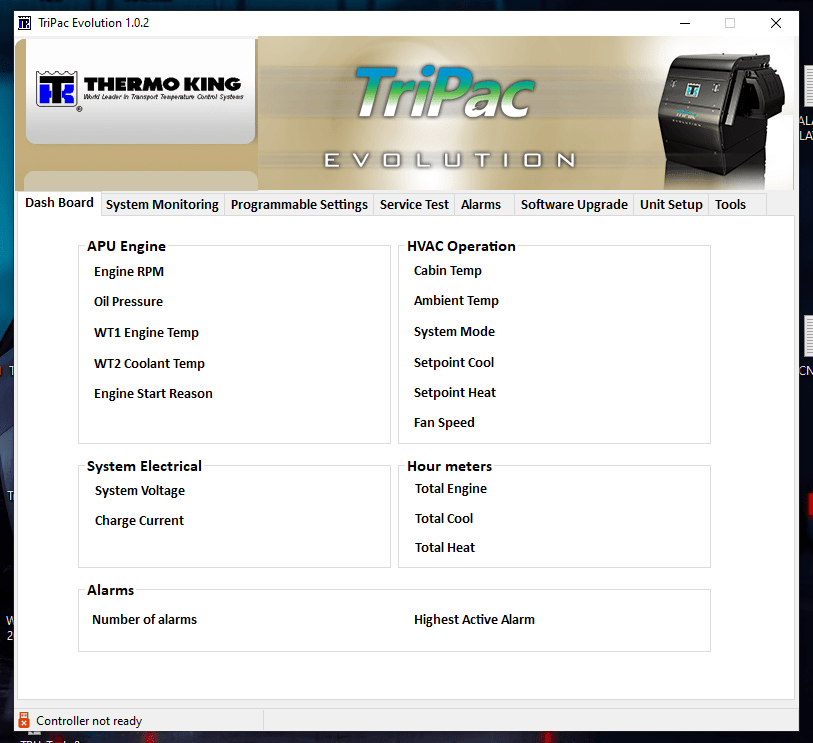


Thermo King Tripac EVOLUTION Service Tool R2: Essential Guide for Maintenance
The Thermo King Tripac EVOLUTION Service Tool R2 is a diagnostic software designed for the maintenance of APU units in trucks. This tool simplifies troubleshooting with real-time diagnostics and software update functions. Installing the service tool is straightforward and can be done via TeamViewer. Proper installation ensures optimal performance and helps truck drivers and technicians effectively manage their equipment.
Overview of the Tripac Evolution Service Tool R2
This section discusses the essential features and benefits of the Tripac Evolution Service Tool R2, highlighting its role in effective maintenance of APU units in trucks.
Key Features of the Diagnostic Tool
The Tripac Evolution Service Tool R2 provides a variety of functionalities to streamline diagnostics and maintenance.
Real-Time Diagnostic Capabilities
Technicians can monitor system performance as it occurs. This feature enables immediate identification of potential issues, which leads to timely interventions and repairs.
Software Update Functions
Keeping software up to date is crucial for optimal performance. The tool offers straightforward procedures for updating the diagnostic software, ensuring the APU units run the latest enhancements.
Data Logging and System Reset Options
Data logging capabilities allow for efficient tracking of system performance over time. Users can also reset systems following repairs, facilitating a quick return to operation.
Compatibility with Thermo King Tripac Evolution Units
This diagnostic tool is designed specifically to integrate seamlessly with Thermo King APU units, optimizing their functionality and longevity.
Benefits for Truck Drivers and Technicians
Utilizing the Tripac Evolution Service Tool R2 brings several advantages, including:
- Increased efficiency in diagnosing and fixing issues.
- Cost savings by allowing for self-service maintenance.
- Enhanced comfort for drivers through improved APU functionality.
Installation and Setup Process
Setting up the Service Tool is a crucial step for ensuring optimal performance. Follow the guidelines below for a smooth installation experience.
System Requirements for the Service Tool
Before installation, ensure your system meets specific requirements to run the software effectively.
Supported Operating Systems
- Windows 10 is necessary for compatibility.
Required Hardware and Cable Specifications
- A USB to Mini-B USB cable is needed for connection.
- Using the official cable (part number 204-2000) is advisable for optimal performance.
Step-by-Step Installation via TeamViewer
The installation process can be completed efficiently using TeamViewer.
Preparing Your Computer for Installation
- Download and install TeamViewer on your computer.
- Ensure your system is updated and running correctly.
Connecting the Diagnostic Cable to the Truck
- Connect the USB cable to the APU unit.
- Plug the other end into the USB port on your computer.
Troubleshooting Installation Issues
If any problems arise during installation, consider the following steps.
- Verify that the cable connections are secure.
- Check for any software updates for your operating system.
Using the Diagnostic Service Tool
The Diagnostic Service Tool provides vital functionalities for monitoring and maintaining the performance of APU units. It enables users to easily access diagnostic codes, track system performance, and make necessary adjustments.
Accessing and Interpreting Diagnostic Codes
Understanding diagnostic codes is crucial for effective troubleshooting. The diagnostic tool displays error codes and alarms, allowing users to quickly identify issues within the APU system.
Common Error Codes and Their Meanings
- Error Code 101: Low fuel level detected.
- Error Code 202: Overheating condition flagged.
- Error Code 303: Electrical system failure.
How to Clear Error Codes Safely
Clearing error codes should be done cautiously. Users can select the error code in the tool and confirm its removal to reset the system, ensuring that the underlying issue is addressed beforehand.
Monitoring System Performance in Real Time
Real-time monitoring assists in maintaining optimal performance. The tool provides live data about the APU’s operational status.
Key Parameters to Watch
- Fuel consumption rates.
- Temperature levels of the engine.
- Battery voltage and charge status.
Alerts and Notifications Management
Users can set alerts for specific parameters. This proactive approach helps in identifying potential issues before they escalate into major problems.
Configuring and Calibrating the APU System
Proper configuration is essential for new units and performance enhancement. Adjusting settings allows for tailored operation based on specific needs.
Setup for New Units
- Follow the setup wizard for initial configurations.
- Ensure all components are connected properly.
Adjusting Settings for Optimal Performance
Tuning settings such as temperature control and power output helps achieve efficient operation and longer lifespan of the unit. Regular adjustments based on usage data are recommended.
Training and Support Resources
Access to comprehensive training and support resources is essential for maximizing the functionality of diagnostic tools. This ensures both drivers and technicians can effectively operate and maintain their systems.
Available Training Options for Drivers and Technicians
A variety of training formats are available to meet the needs of users, ensuring everyone can gain the necessary skills to utilize the service tool efficiently.
-
Online Tutorials and Webinars
These resources provide users with the flexibility to learn at their own pace. Webinars are often interactive, allowing for real-time questions and answers.
-
In-Person and Remote Training Sessions
Hands-on training sessions can be conducted at selected locations or remotely, tailoring the learning experience to individual requirements.
Best Practices for Using the Service Tool
Adhering to best practices enhances user efficiency and tool performance while preventing common issues.
-
Handling Updates and Software Maintenance
Regular updates should be implemented as recommended to keep the software functioning smoothly and securely.
-
Tips to Maximize Diagnostic Efficiency
Understanding critical functions and utilizing diagnostic features can significantly increase operational effectiveness.
Accessing Manufacturer Support and Privacy Terms
Users are encouraged to familiarize themselves with the privacy terms associated with the software. Manufacturer support is readily available for technical assistance and inquiries.
Buying and Maintaining Your Service Tool
Purchasing and maintaining the diagnostic service tool is crucial for optimal performance and longevity. Proper care ensures reliable operation and consistent results.
Where to Purchase Official Diagnostic Cables and Tools
Authorized Distributors and Dealers
Official diagnostic cables and tools are available through authorized distributors. These vendors provide genuine products that comply with quality standards, enhancing performance and durability. It’s essential to verify the authenticity of the supplier to avoid counterfeit equipment.
Choosing the Right Cable for Your Needs
Selecting the appropriate diagnostic cable is vital. Compatibility with the specific model of the Tripac Evolution unit is key. Consider the following:
- Length of the cable for accessibility.
- Compatibility with existing installation setups.
- Quality and robustness of the materials used.



Reviews
Clear filtersThere are no reviews yet.